Chapter 0
Start here
Phone or desktop, adding the app to your home screen, who does what, and finding any record fast.
ShingleSync runs your roofing jobs from the first call to the final payment. This manual follows one job through every step, in the order it happens. Each step shows who usually does it: the sales rep, the office, the project manager, the crew or the owner.
Field work is built for your phone. Office work is easier on a computer. It's the same account on both, so pick up wherever you left off.
On your phone
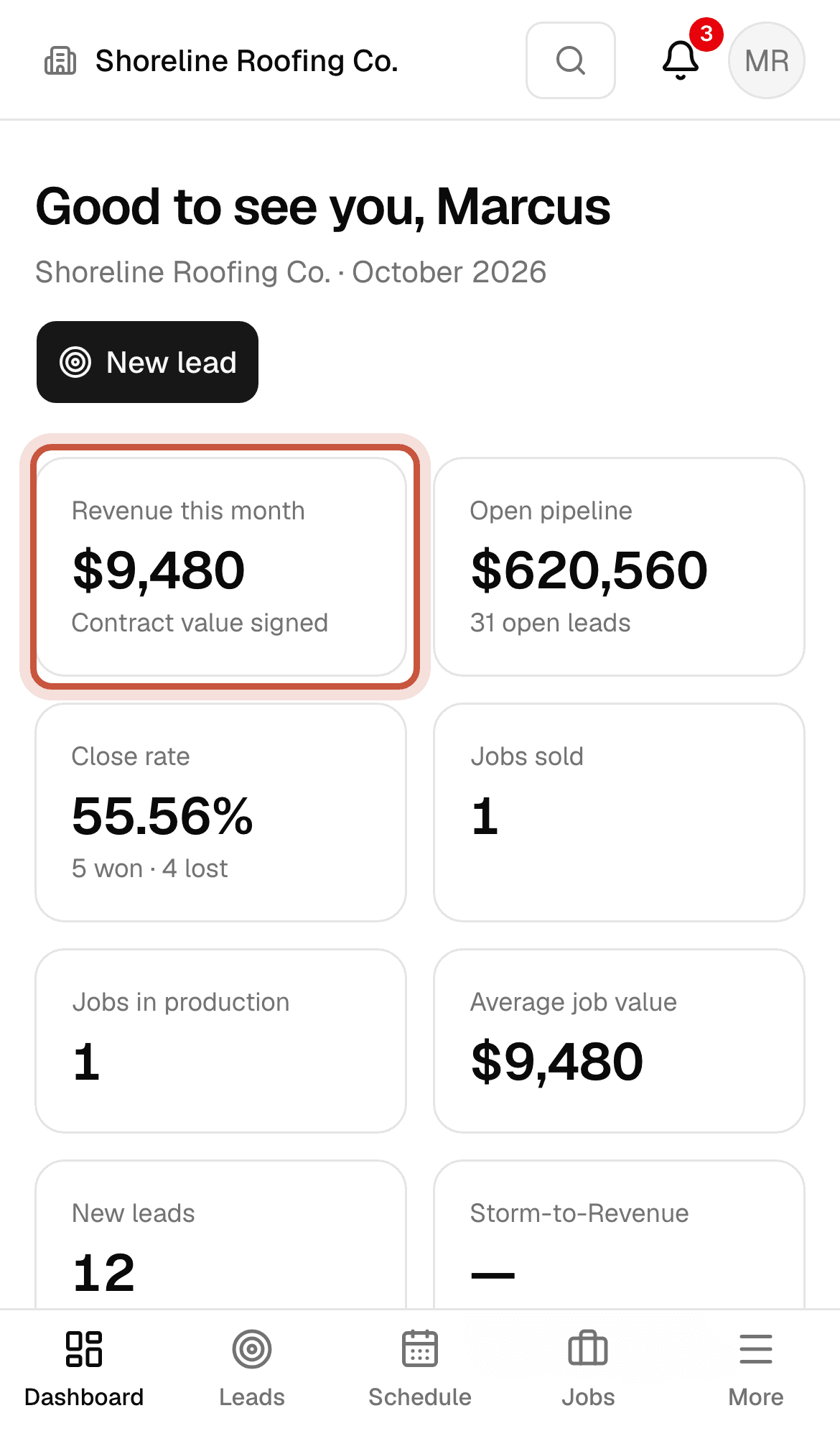
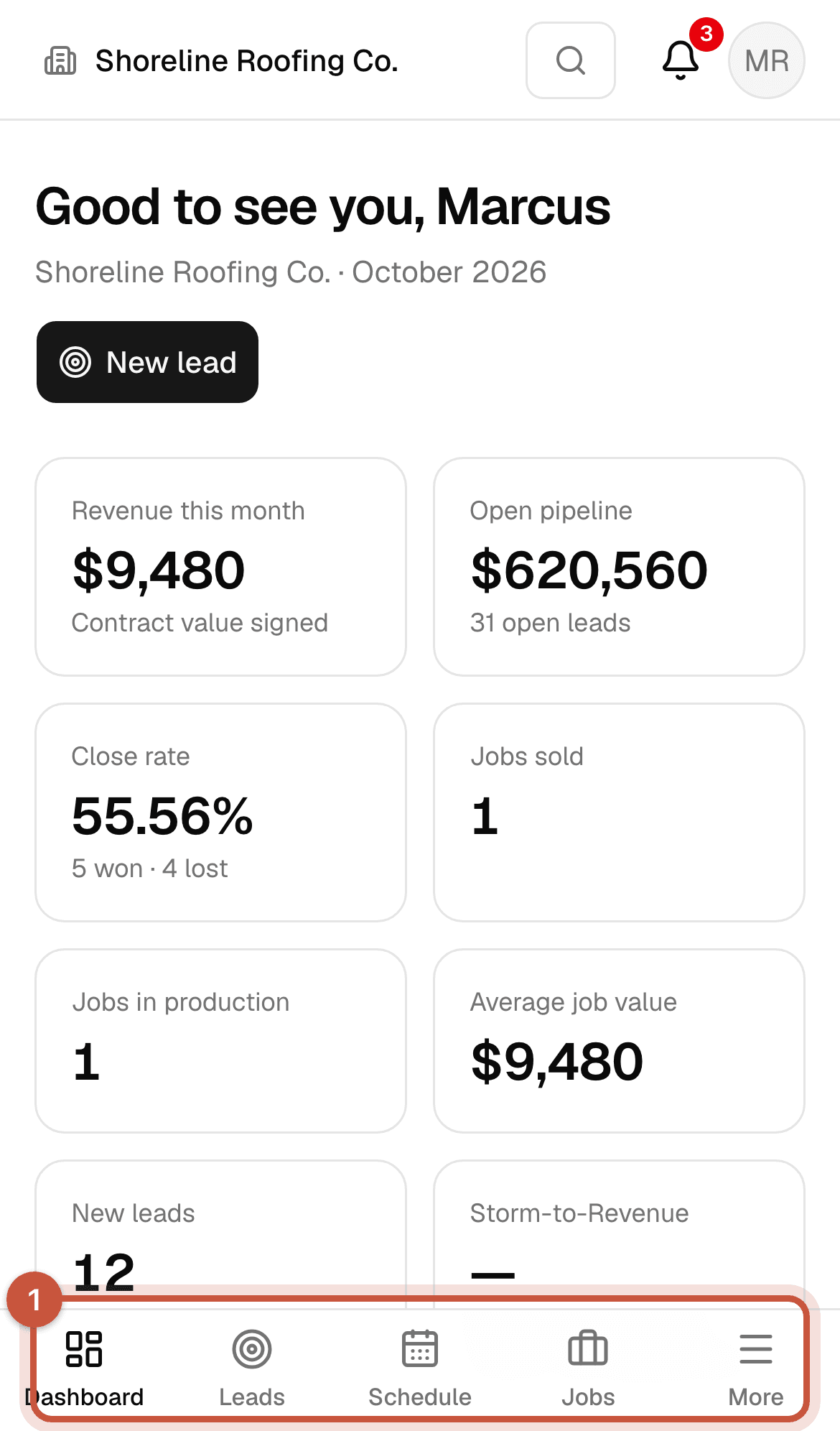
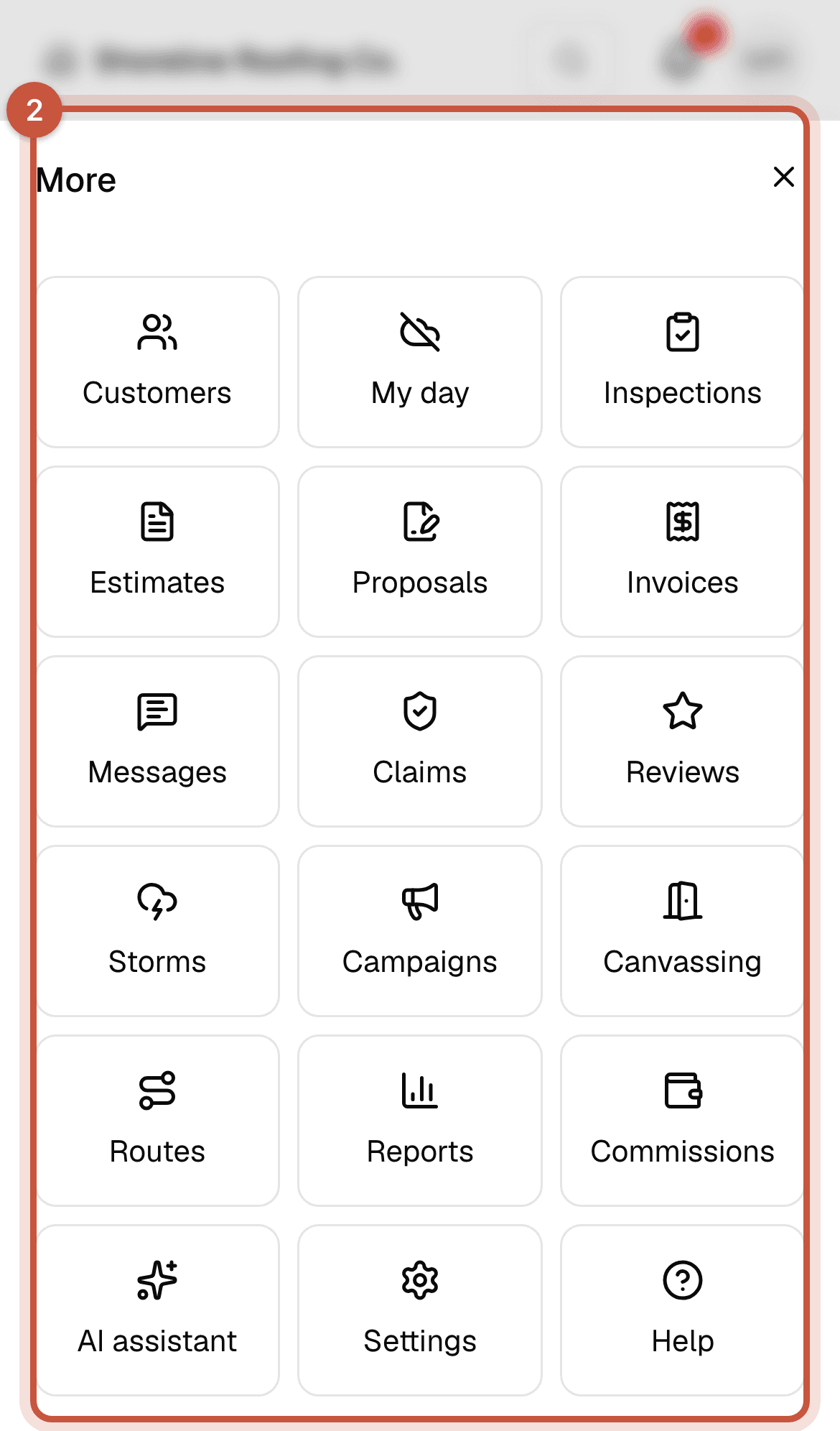
Add ShingleSync to your home screen
There's nothing to download from an app store. Add it to your home screen once and it opens like an app:
- iPhone (Safari): open ShingleSync, tap the Share button, then Add to Home Screen.
- Android (Chrome): open ShingleSync, tap the ⋮ menu, then Add to Home screen or Install app.
When there's a new version, ShingleSync shows A new version is ready with a Reload button.
On a computer
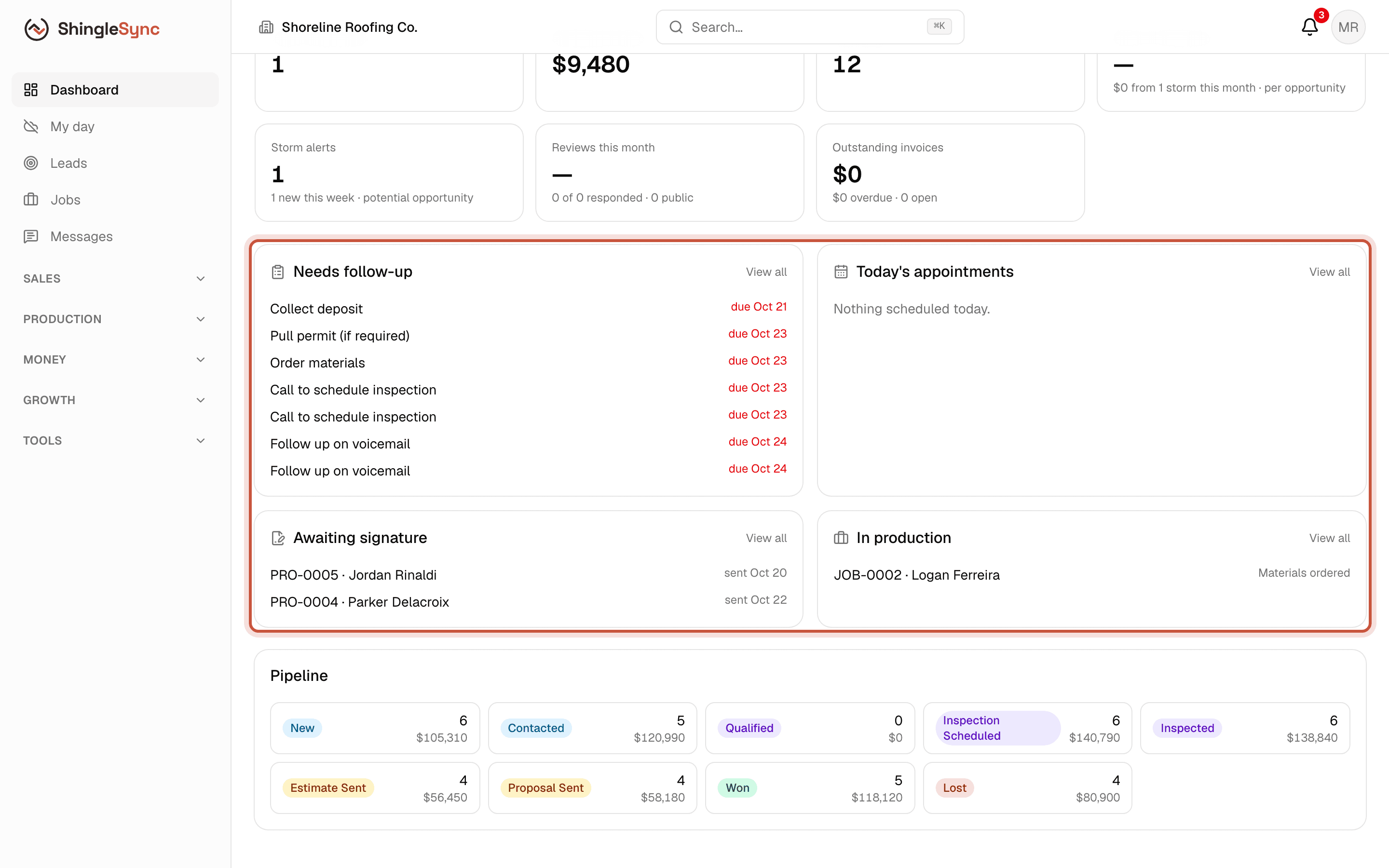
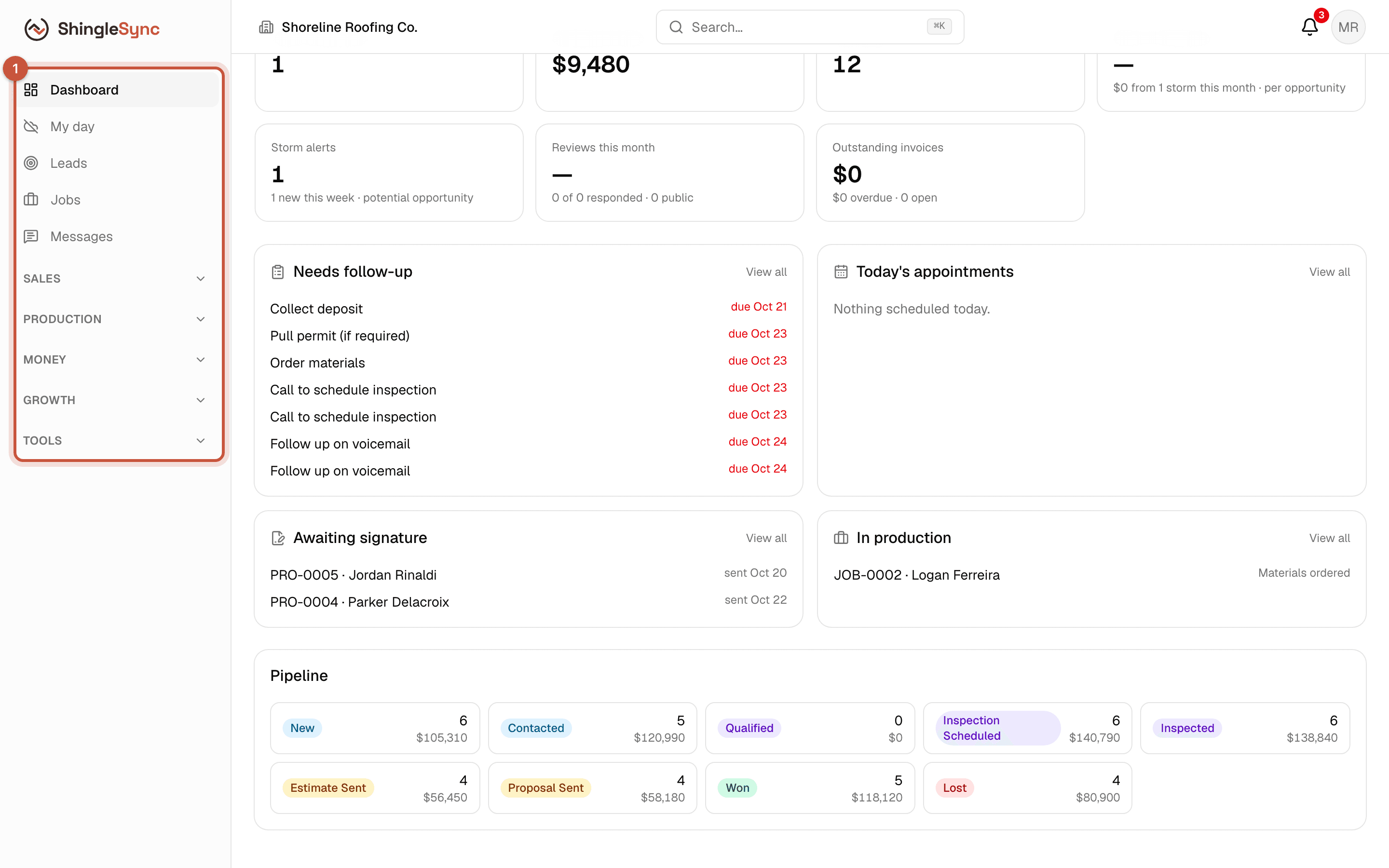
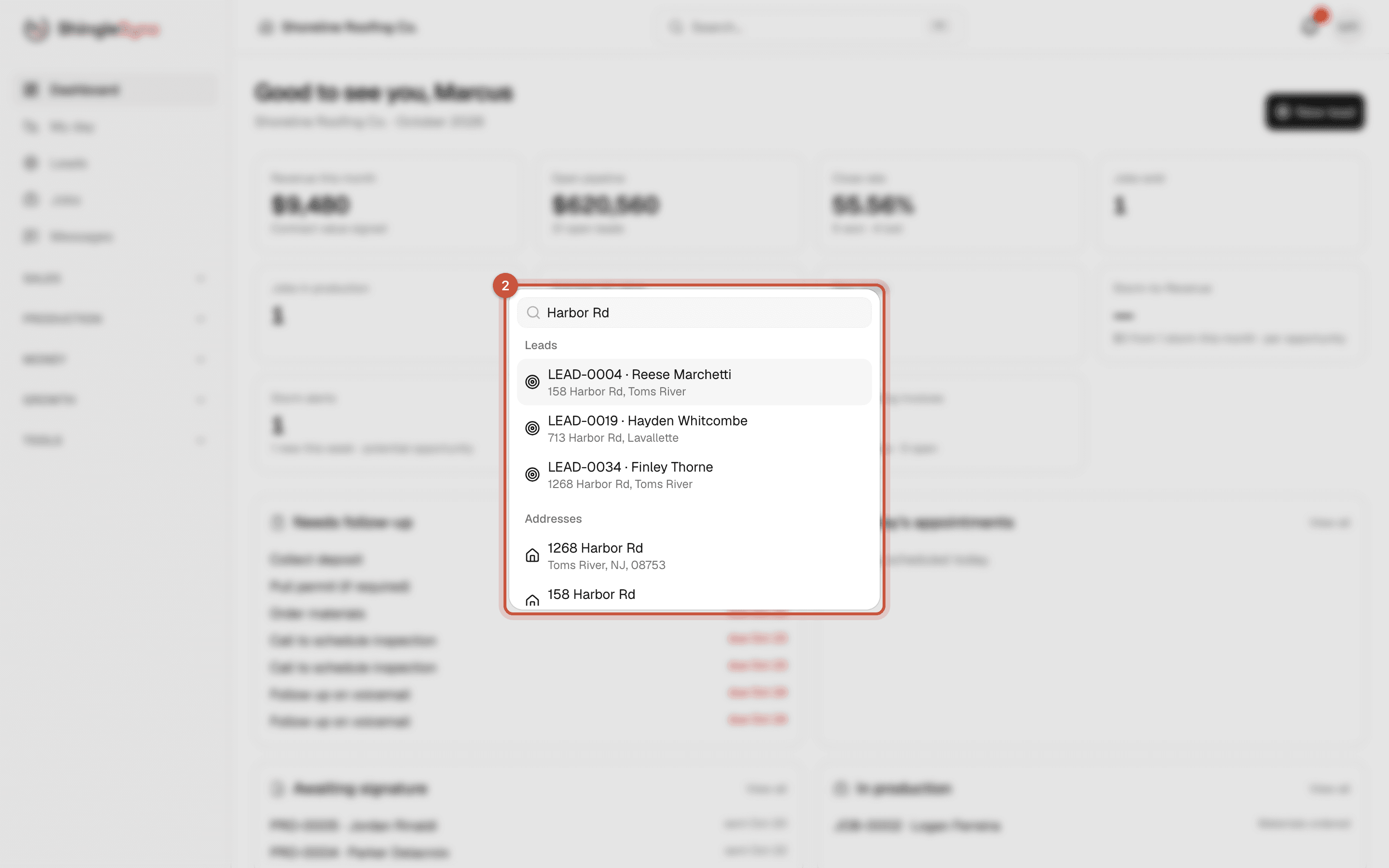
Every number on the dashboard links to the list behind it.
Who does what
Everyone signs in with their own account, and their role decides what they see and can change:
| Role | Usually does |
|---|---|
| Owner | Everything, including company settings, billing, pricing and commissions |
| Admin | Everything except the company's ShingleSync subscription |
| Sales rep | Leads, inspections, estimates and proposals |
| Office | Leads, scheduling, invoices and payments |
| Project manager | Jobs, crews, materials and the production schedule |
| Crew member | Only the jobs assigned to their crew: the address, dates, scope, tasks and photos |
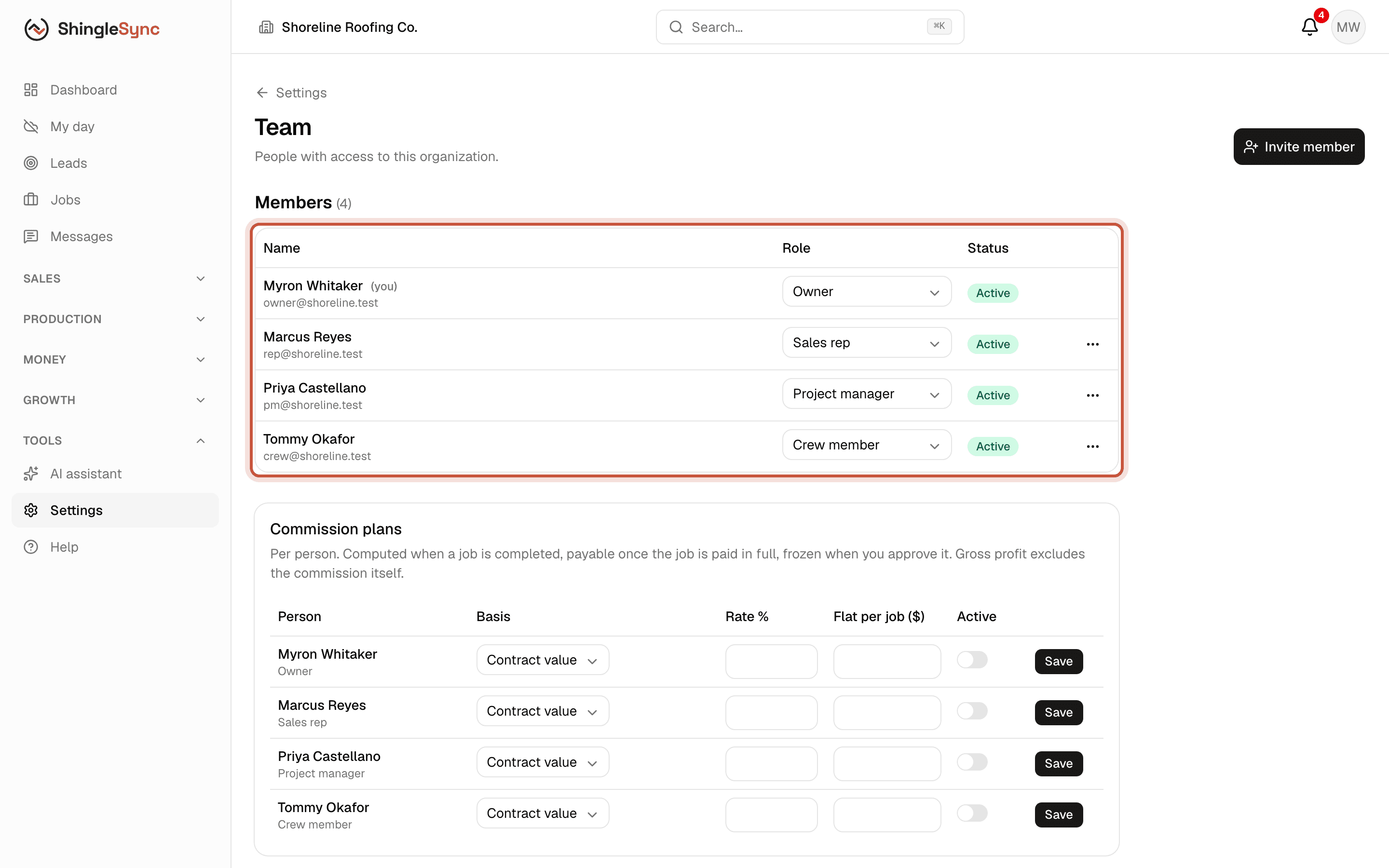
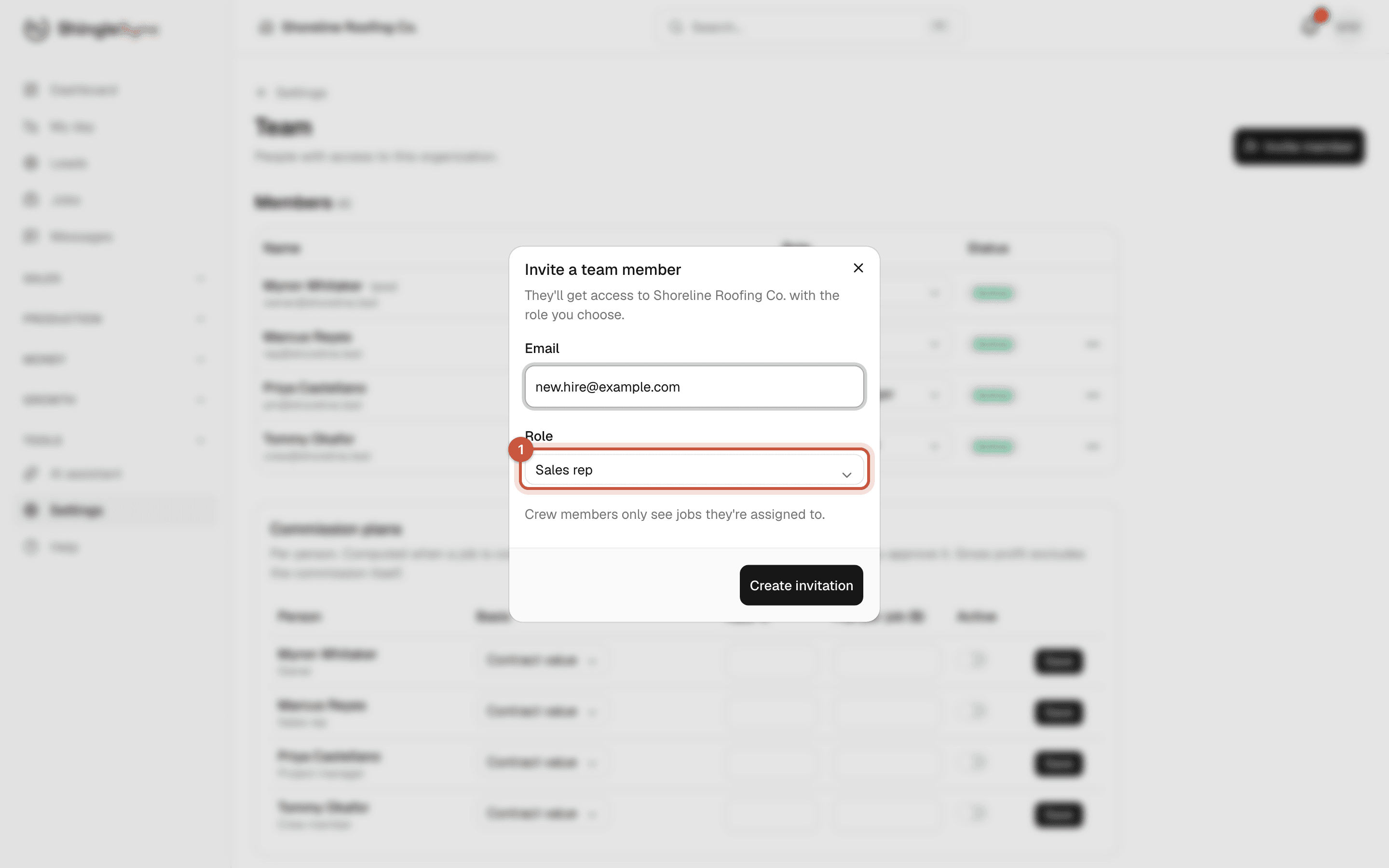
If you belong to more than one company, a switcher appears at the top left to move between them.