Chapter 4

Inspect the roof

The checklist, photos that survive a weak signal, and the inspection report.

Who: Sales repAll plans

The inspection is where you document what's actually on the roof. It's built for a phone in one hand: big buttons, little typing, and photos that don't get lost when the signal drops.

What you record is your own observation. ShingleSync never decides whether a roof is damaged. The report is labelled "Contractor observations — not an insurance or engineering determination."

Work through the checklist
Work through the checklist · 48 s, no soundWho: Sales rep
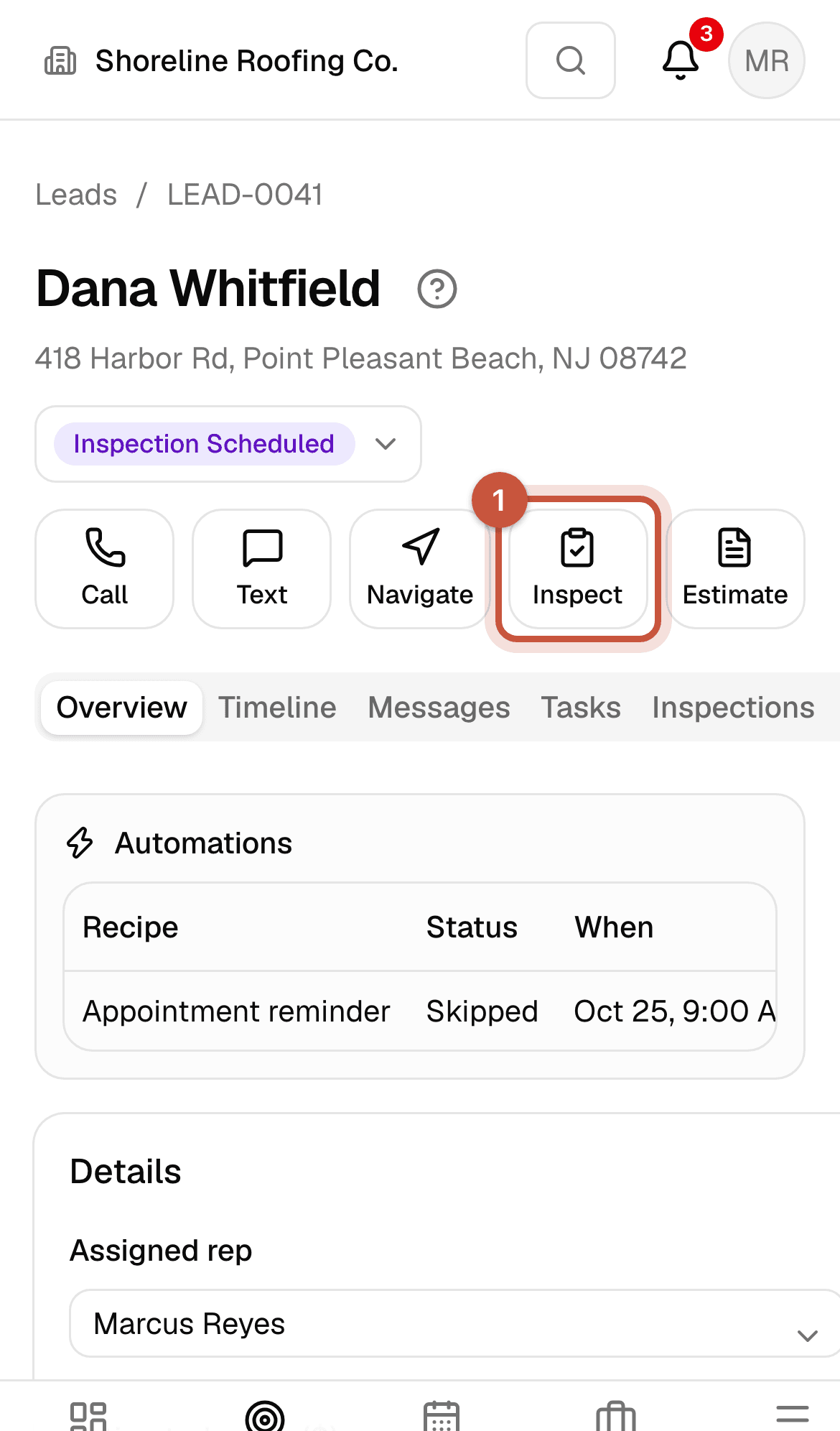
Lead on a phone with the Inspect button highlighted
1On the roof, open the lead and tap Inspect.
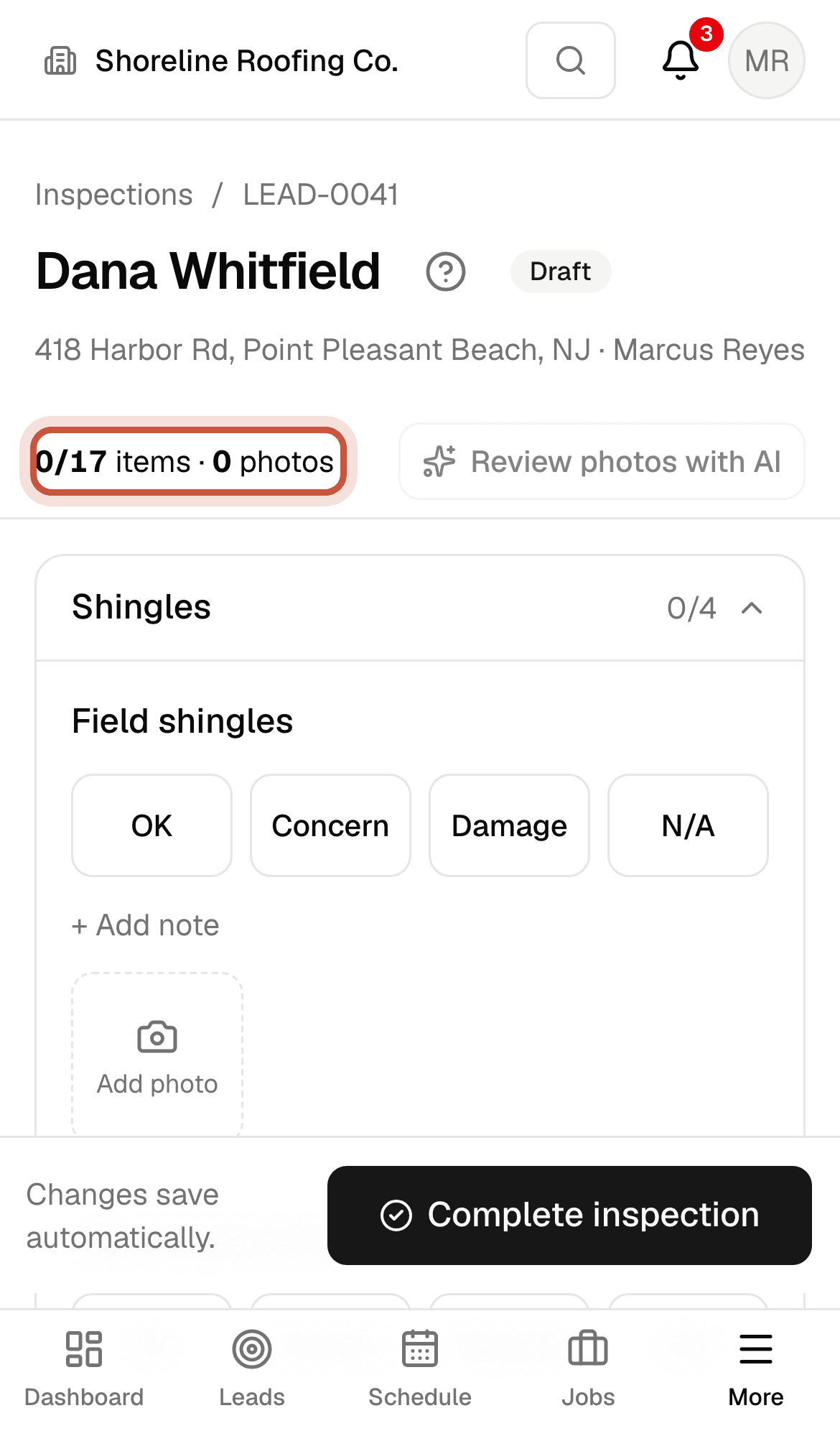
Inspection checklist on a phone, starting with the Shingles section
The checklist comes from your company's template, section by section. The bar at the top counts items and photos.
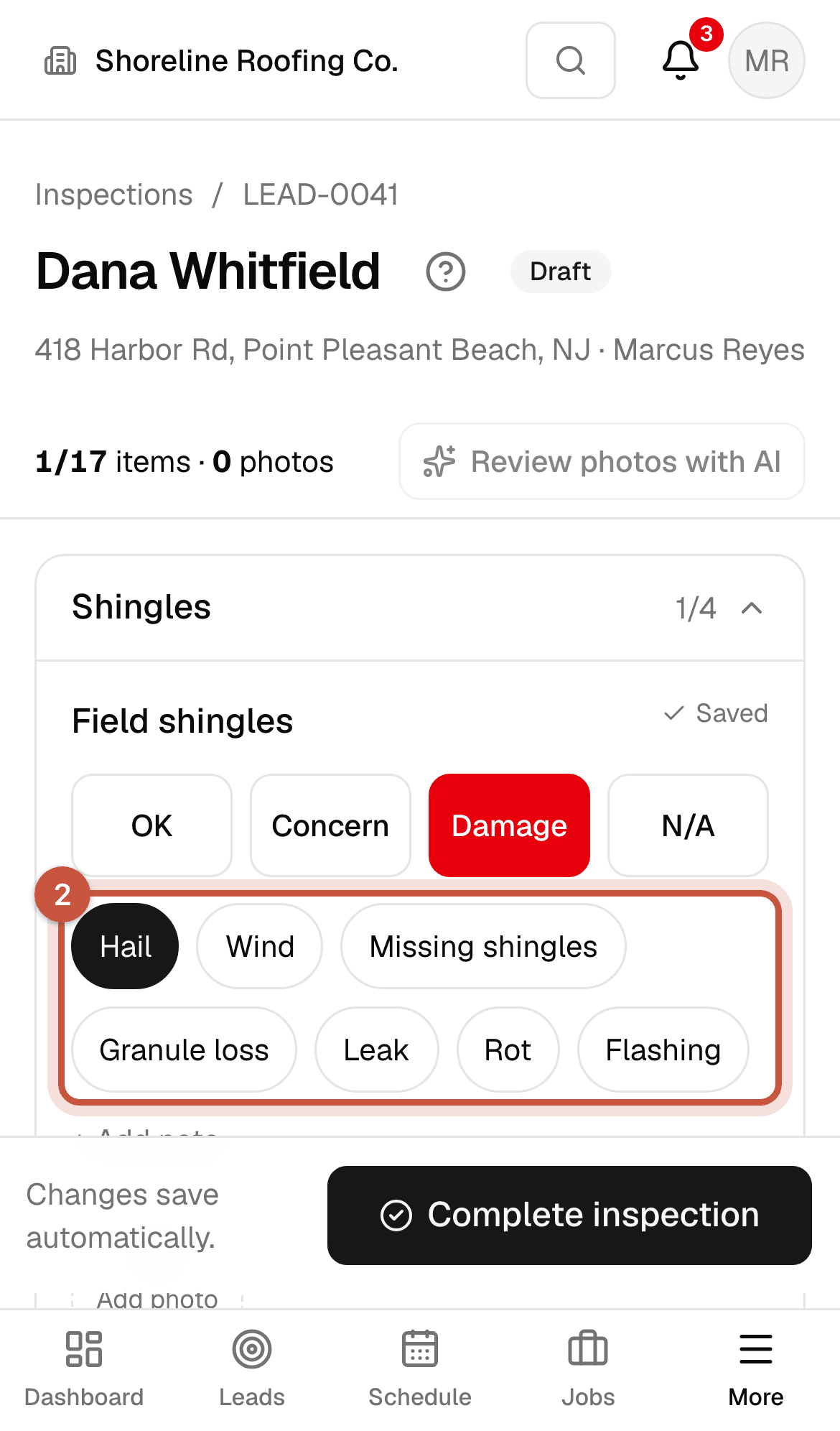
Field shingles marked Damage with Hail selected
2For each item, tap OK, Concern, Damage or N/A. For a concern or damage, tap what kind.
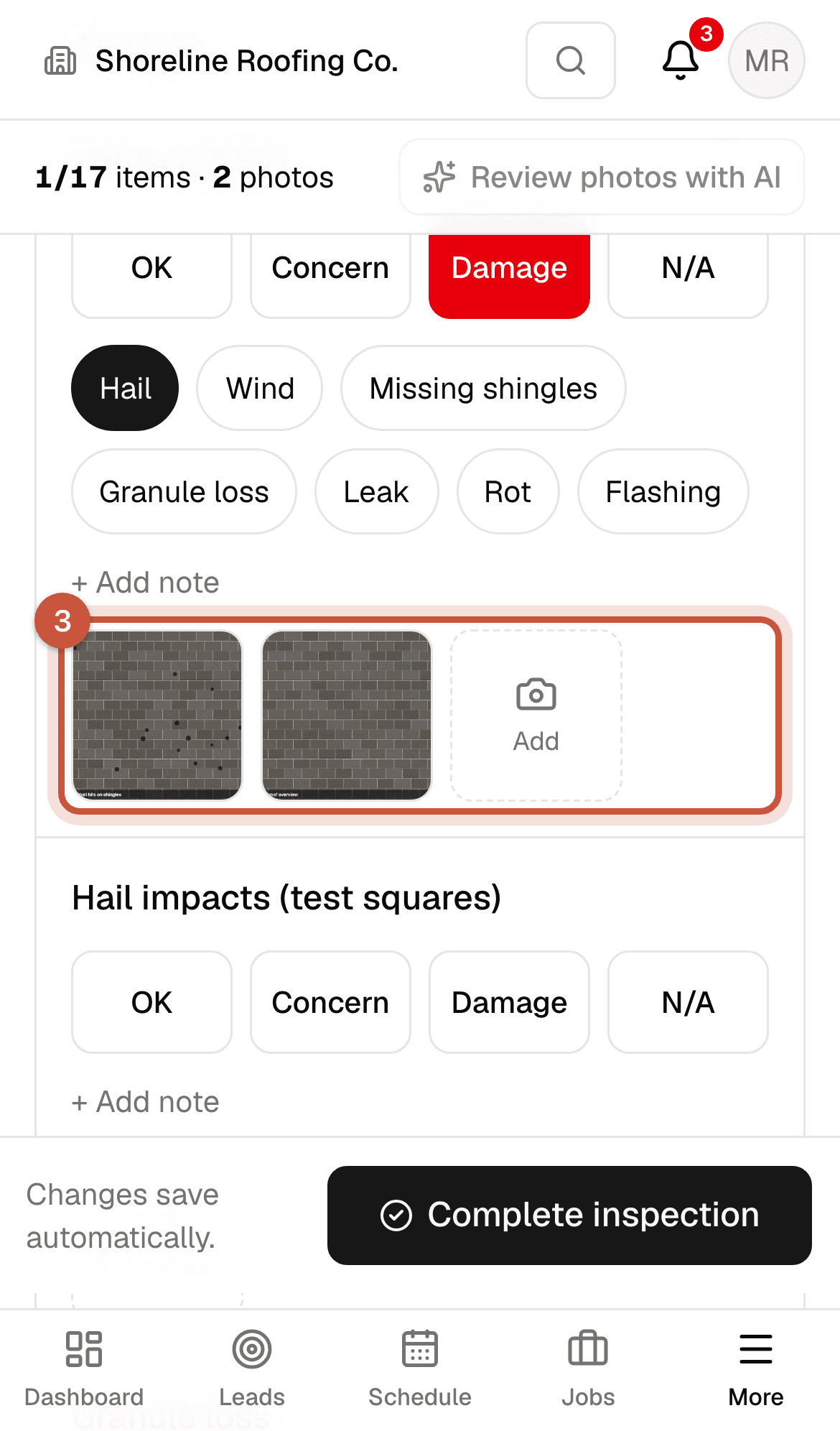
Two photos added under Field shingles
3Tap Add photo to take pictures for that item. They're filed under it as damage photos.
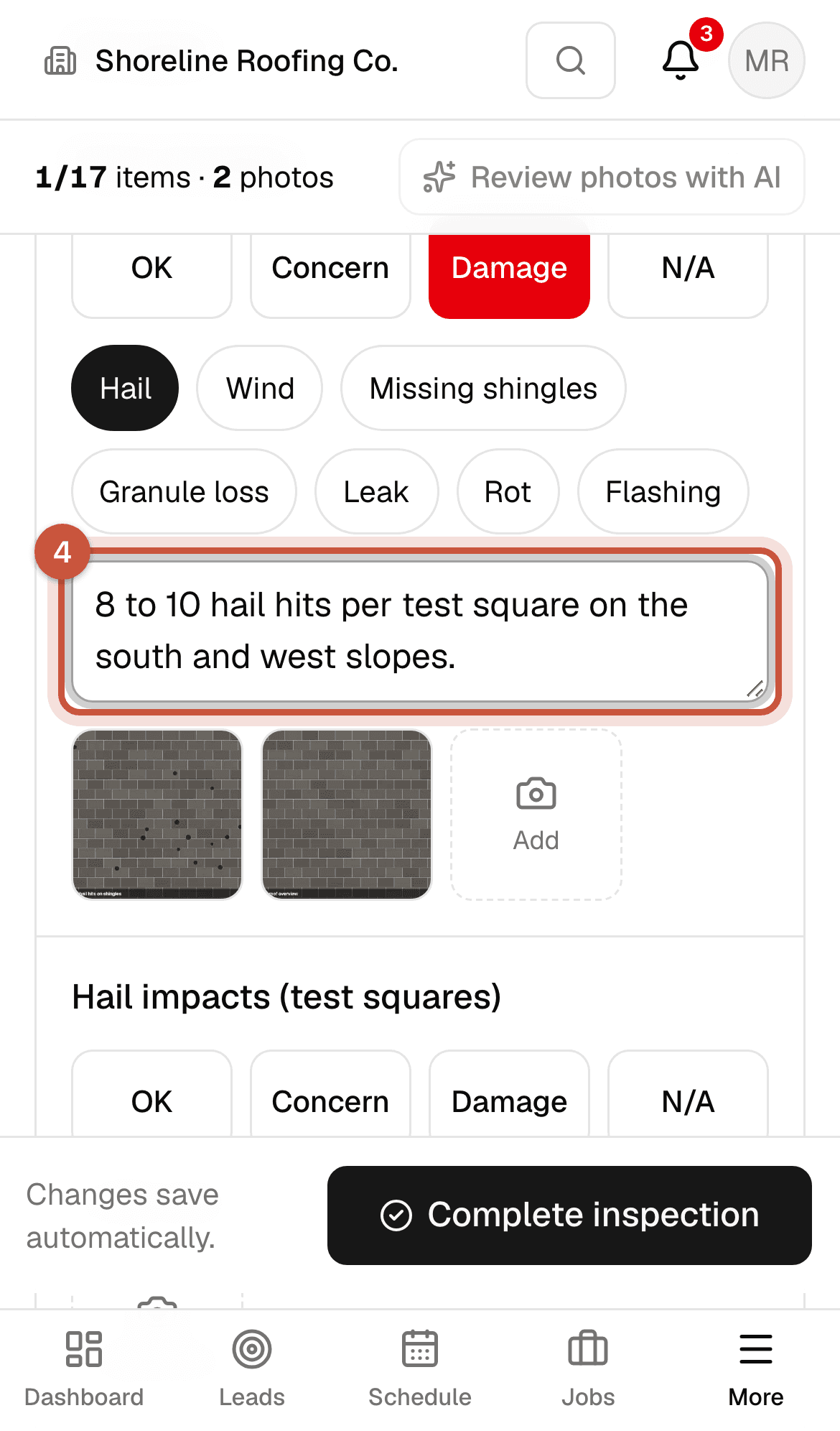
A note under Field shingles and the Saved indicator
4Add a note when a picture needs explaining. Everything saves as you go.

Owners and admins choose the checklist sections and items in Settings → Inspections.

No signal on the roof

Photos are saved on the phone first and uploaded in the background. If you lose signal, keep going: they upload by themselves when you're back online. Keep the app open until the bar at the bottom says they've finished.
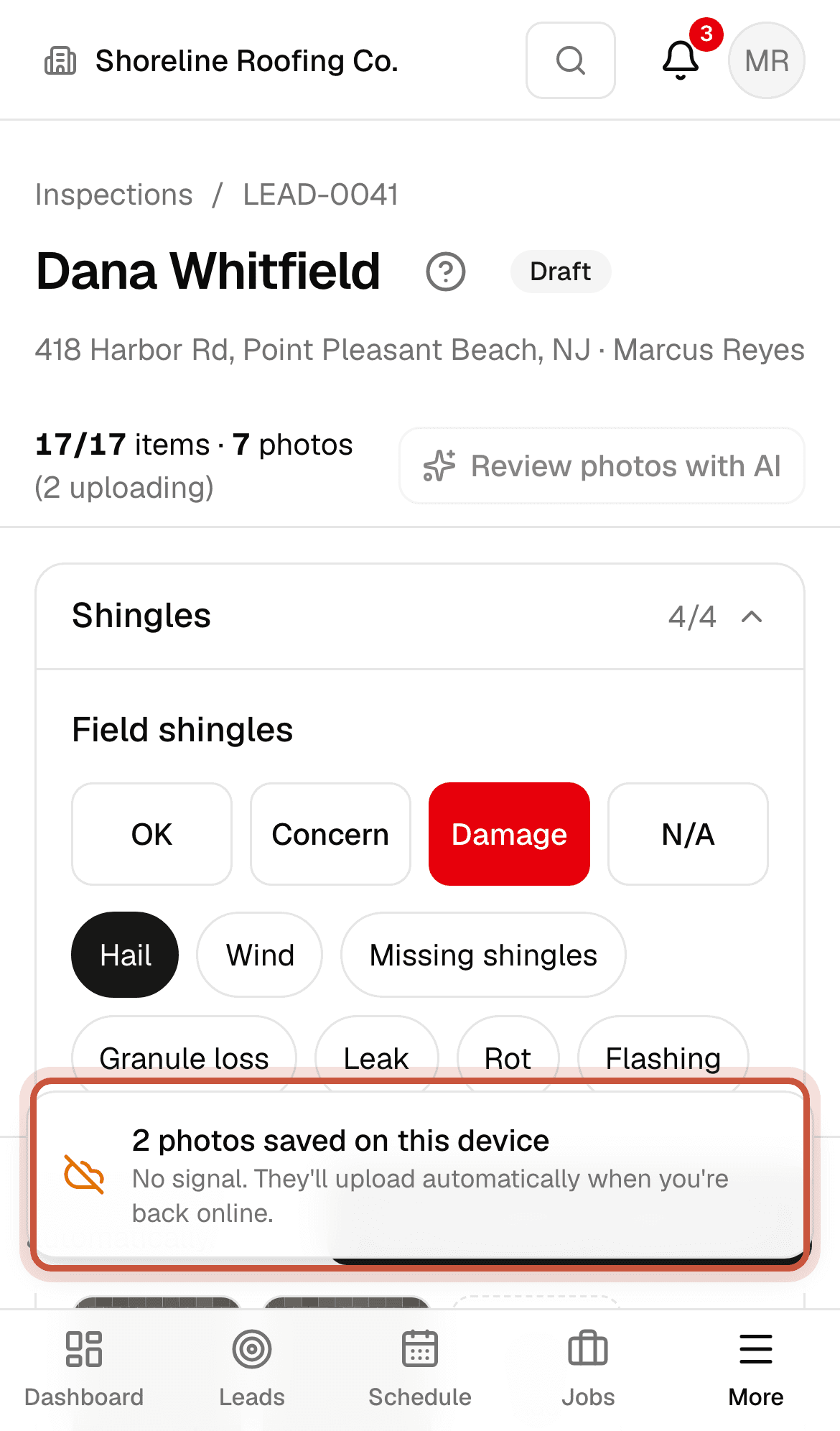
Upload bar: 2 photos saved on this device, no signal
No signal? Keep taking photos. They're saved on the phone and upload by themselves when the signal comes back.
Tip: Add the app to your phone's home screen (chapter 0) so it's one tap away on the roof.

Summary and complete
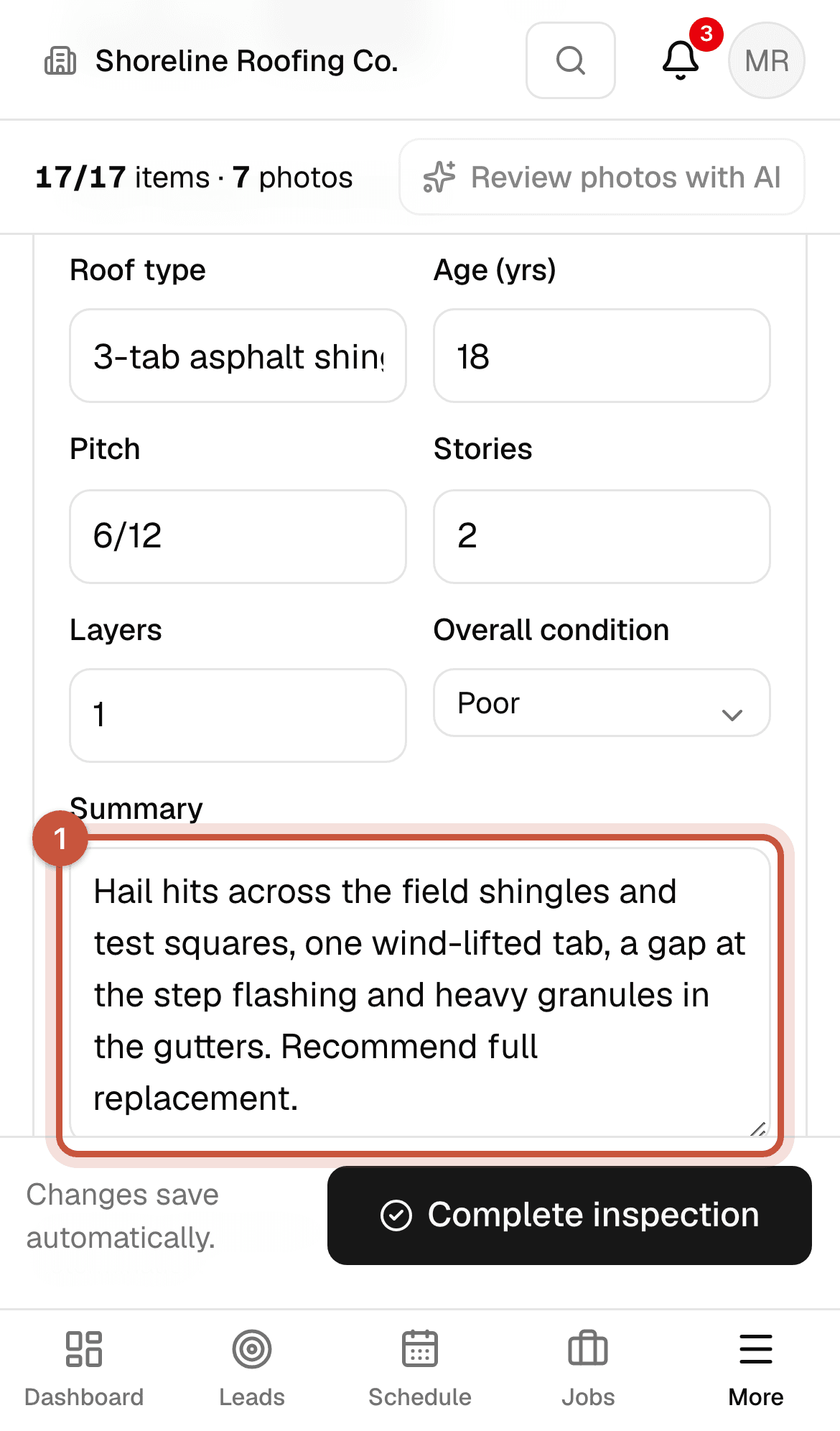
Summary and complete · 30 s, no soundWho: Sales rep
Roof details and summary card with the contractor-observations note
1Fill in the roof details and a short summary in plain language. The report labels it as contractor observations, not an insurance or engineering determination.
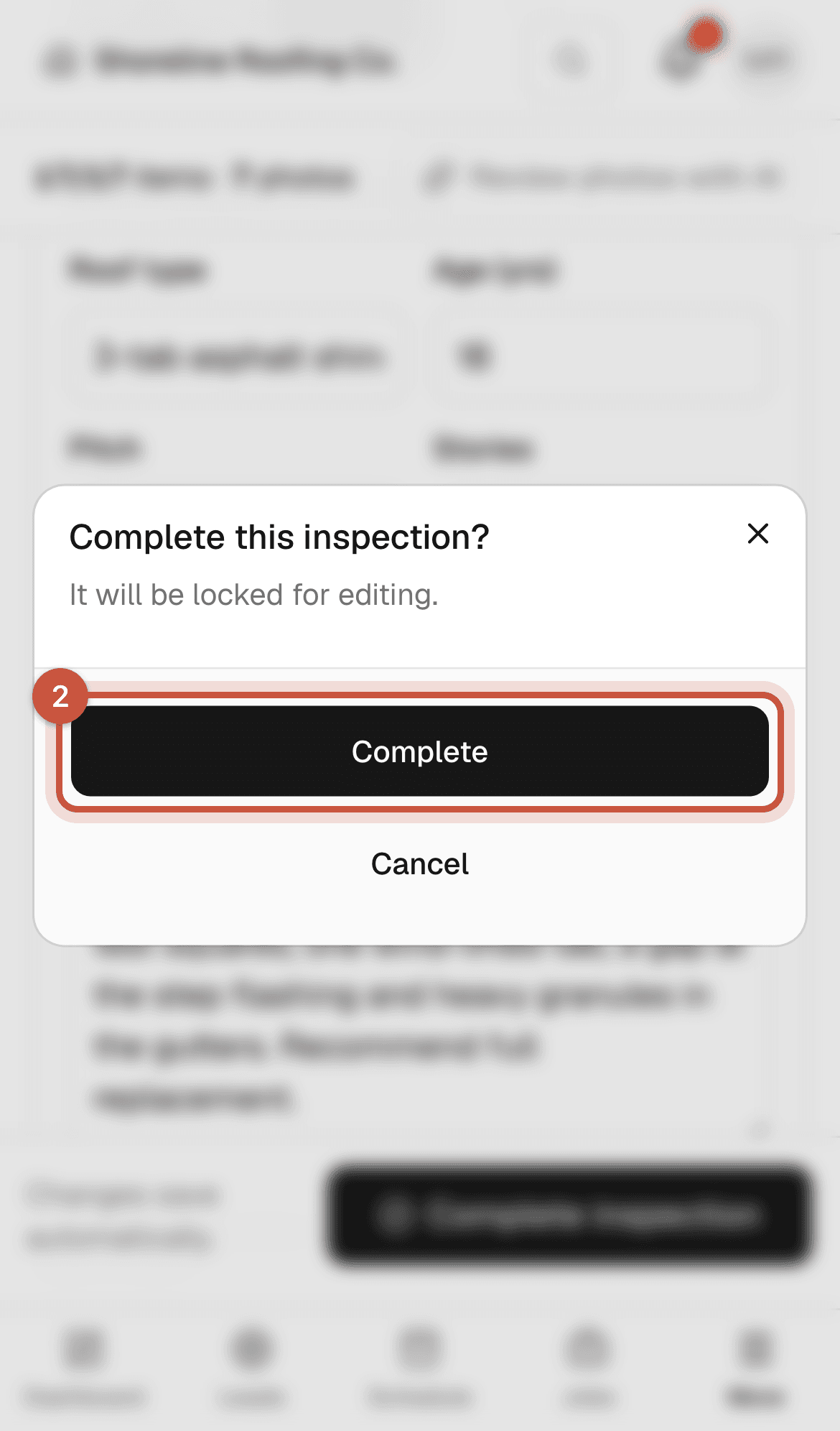
Complete this inspection? dialog
2Tap Complete inspection. It's locked for editing, and the lead moves to Inspected.
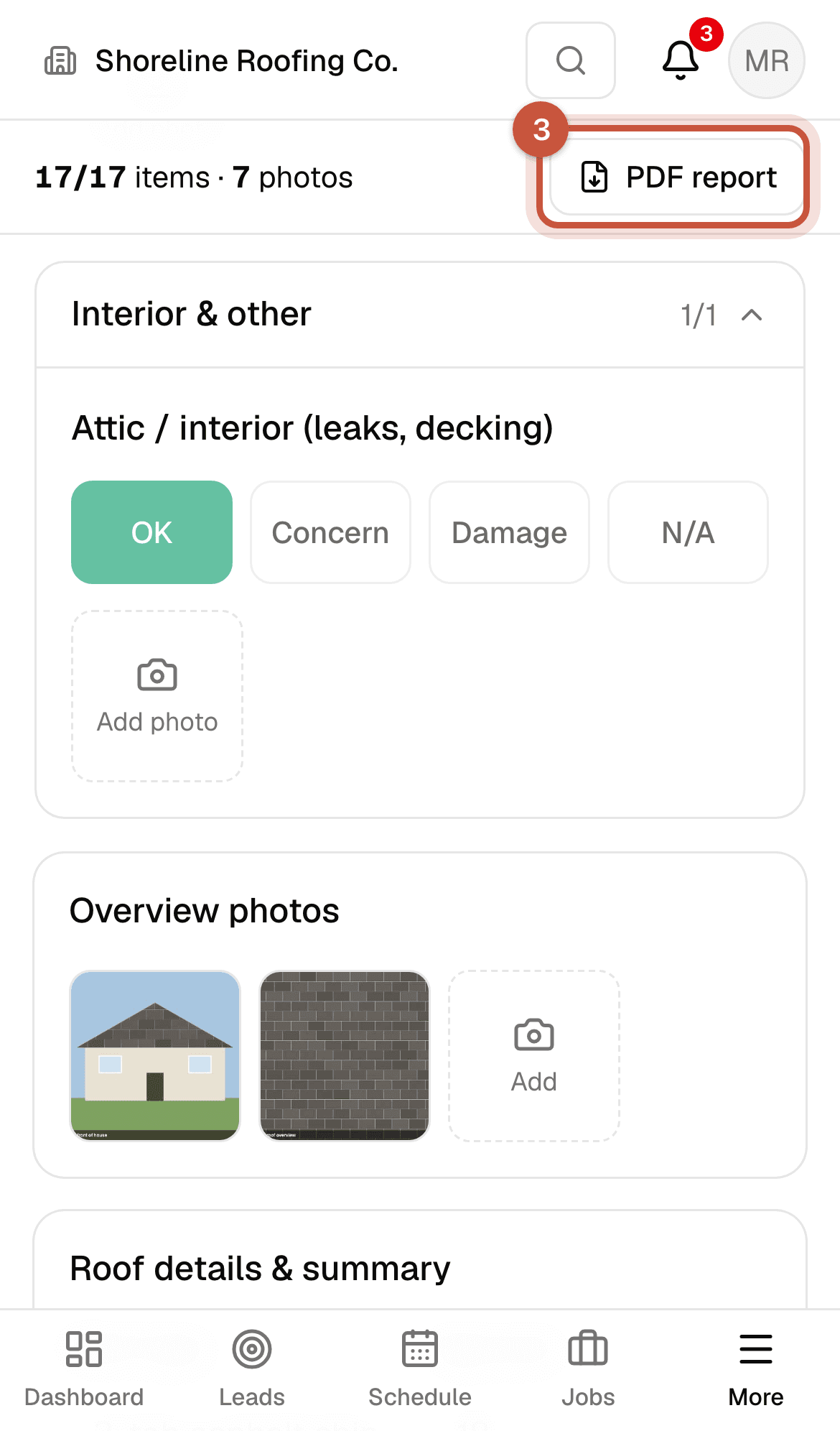
Completed inspection with the PDF report link highlighted
3The PDF report is ready to share with the homeowner or the adjuster.

Completing the inspection moves the lead to Inspected and adds it to the lead's timeline. Owners and admins can reopen a completed inspection if something needs fixing.

The inspection report

The PDF report has your company details, the roof details and summary, and every item with its photos, grouped by section.
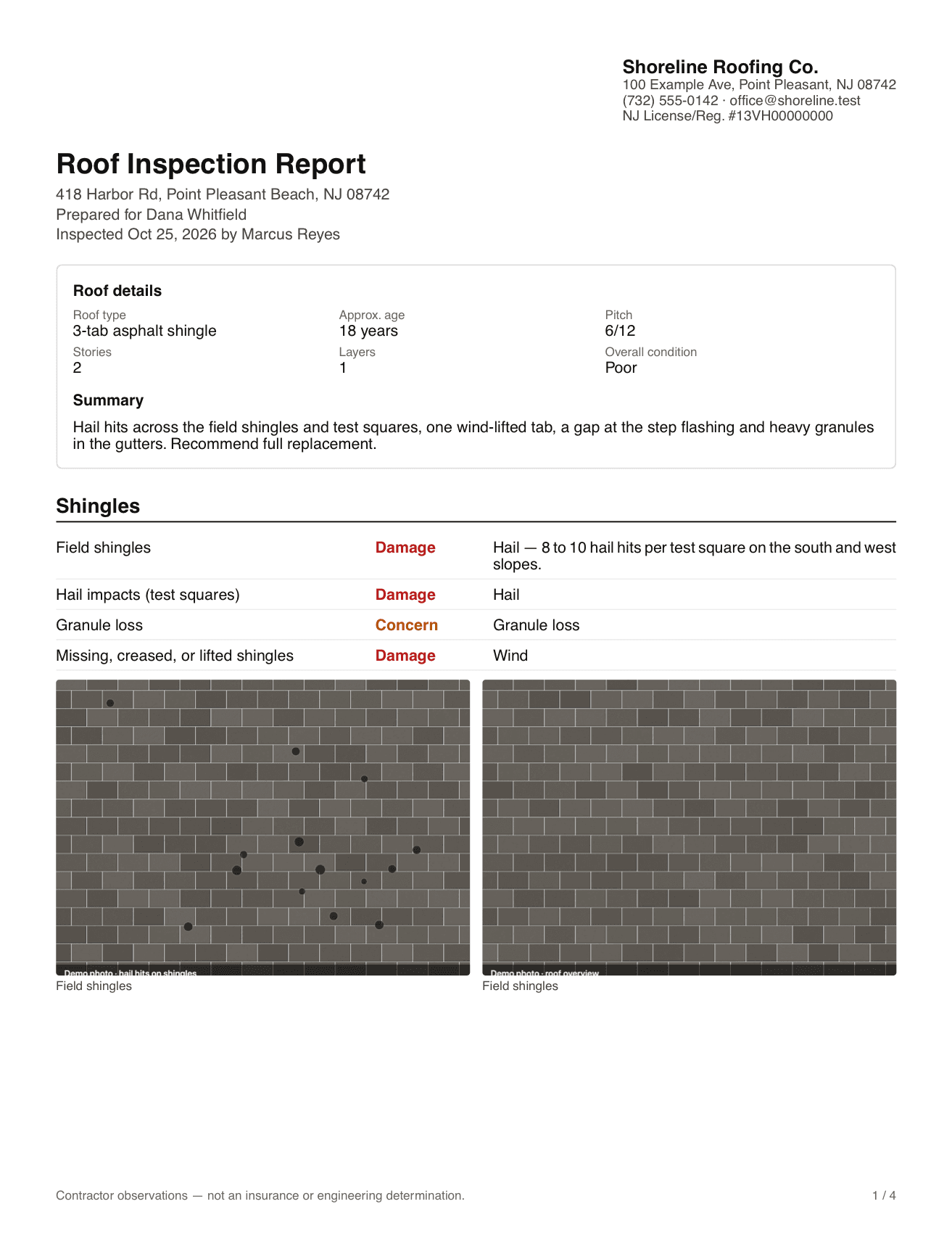
First page of the inspection report PDF
The inspection report: your branding, the summary, and photos grouped by section.