Chapter 8

Send the proposal

Turn the estimate into a proposal and send the homeowner a secure link.

Who: Sales repPro and Storm plans

The proposal is what the homeowner reads and signs. It combines your estimate's options and prices with your project overview, scope, timeline, warranty, payment schedule and notice of cancellation. You send a secure link, and the homeowner signs on their phone.

Create the proposal
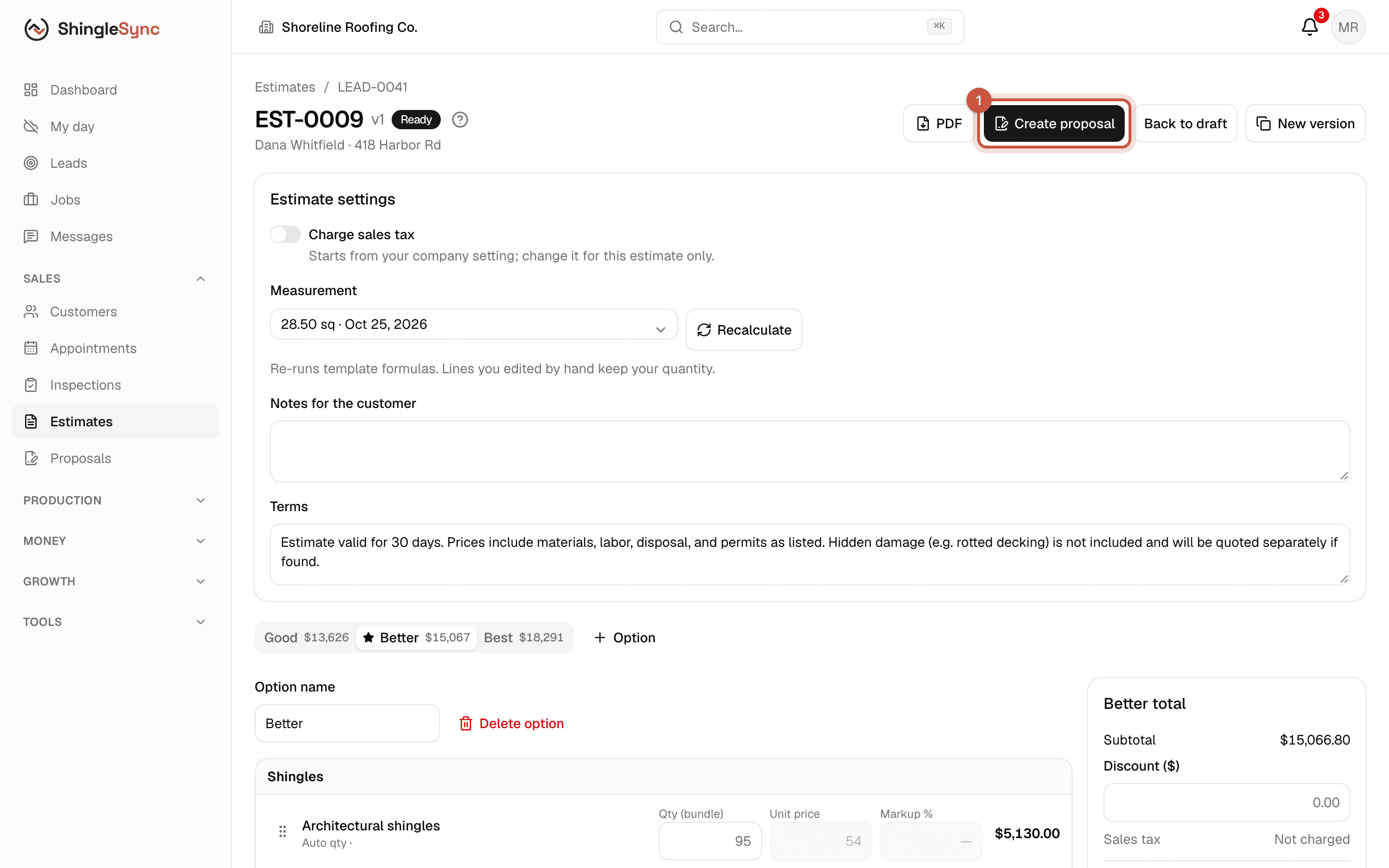
Create the proposal · 30 s, no soundWho: Sales rep
Estimate page with the Create proposal button highlighted
1On an estimate that's marked ready, click Create proposal.
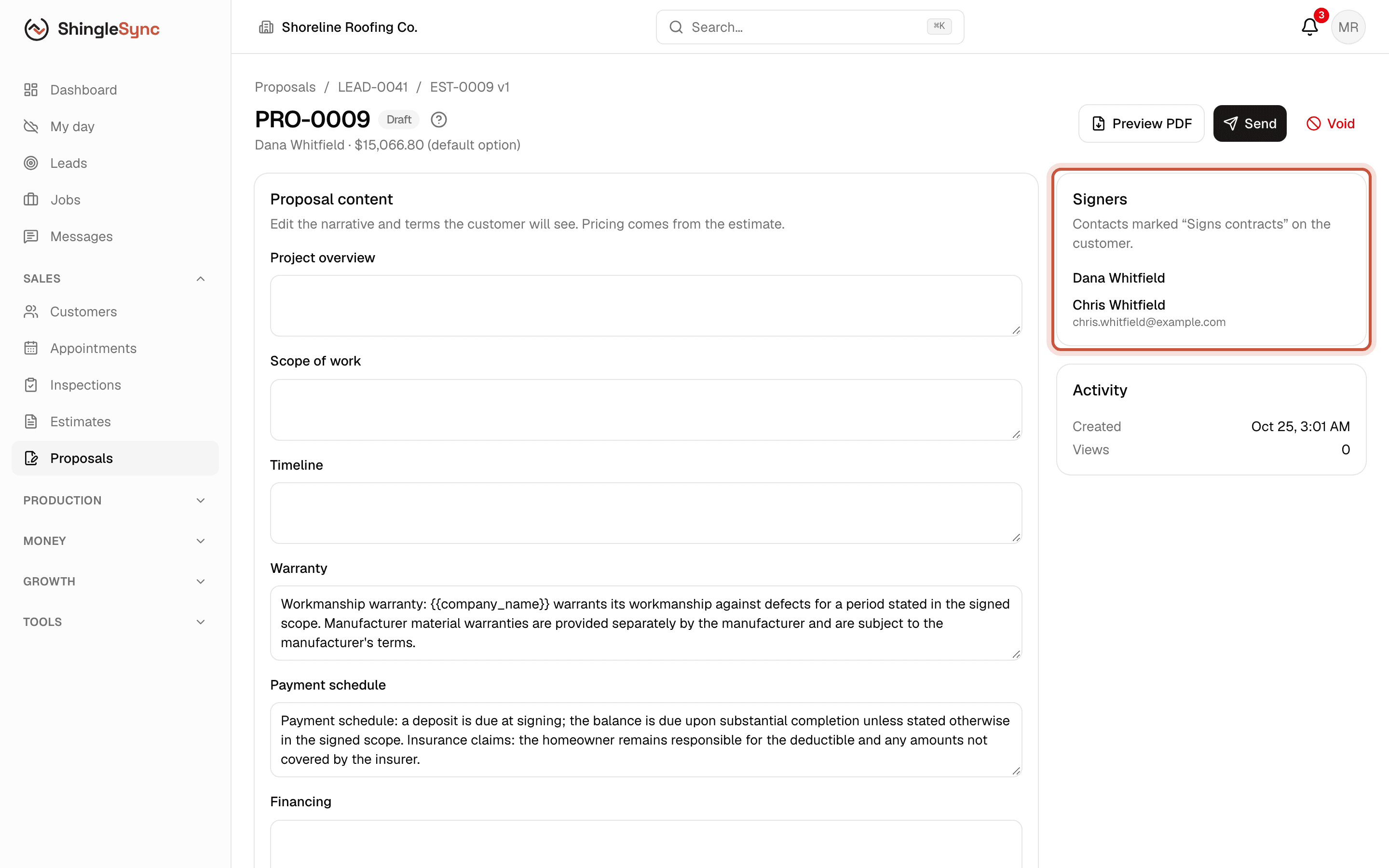
Draft proposal page with the content editor, the signers card and the activity card
The proposal starts as a draft. Pricing comes from the estimate; the signers are every contact marked Signs contracts.
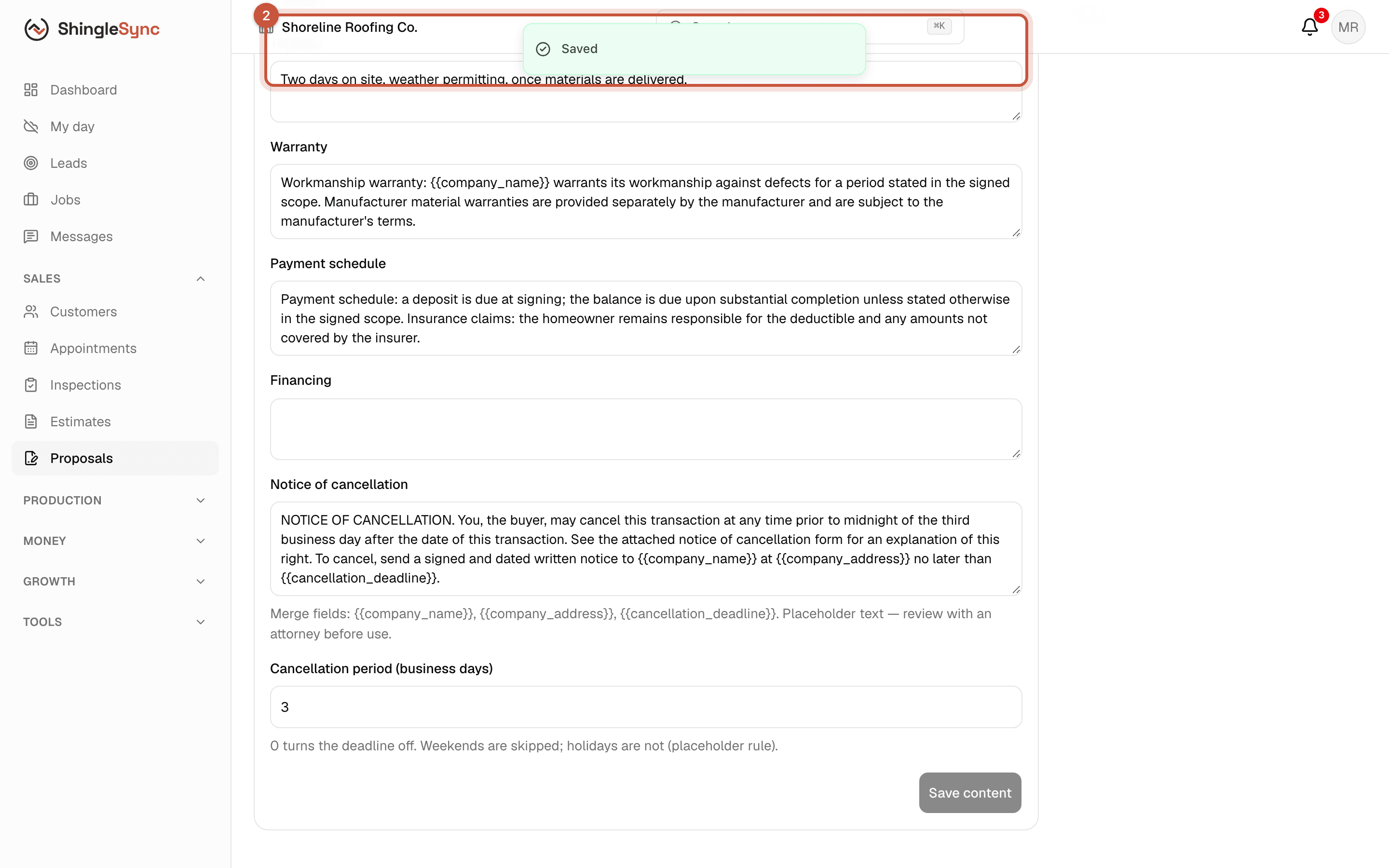
Proposal content editor with the project overview, scope of work and timeline filled in
2Write the project overview, scope of work and timeline the homeowner will read. Warranty, payment schedule and cancellation notice come from your contract settings.
Signers: every contact on the customer marked Signs contracts has to sign. Check both owners are on it before you send (chapter 2).

The warranty, payment schedule, financing note and notice of cancellation start from your company's contract settings (Settings → Contract terms). Have your attorney review that text: ShingleSync provides the place for it, not the legal wording.

Send the signing link · 11 s, no soundWho: Sales rep
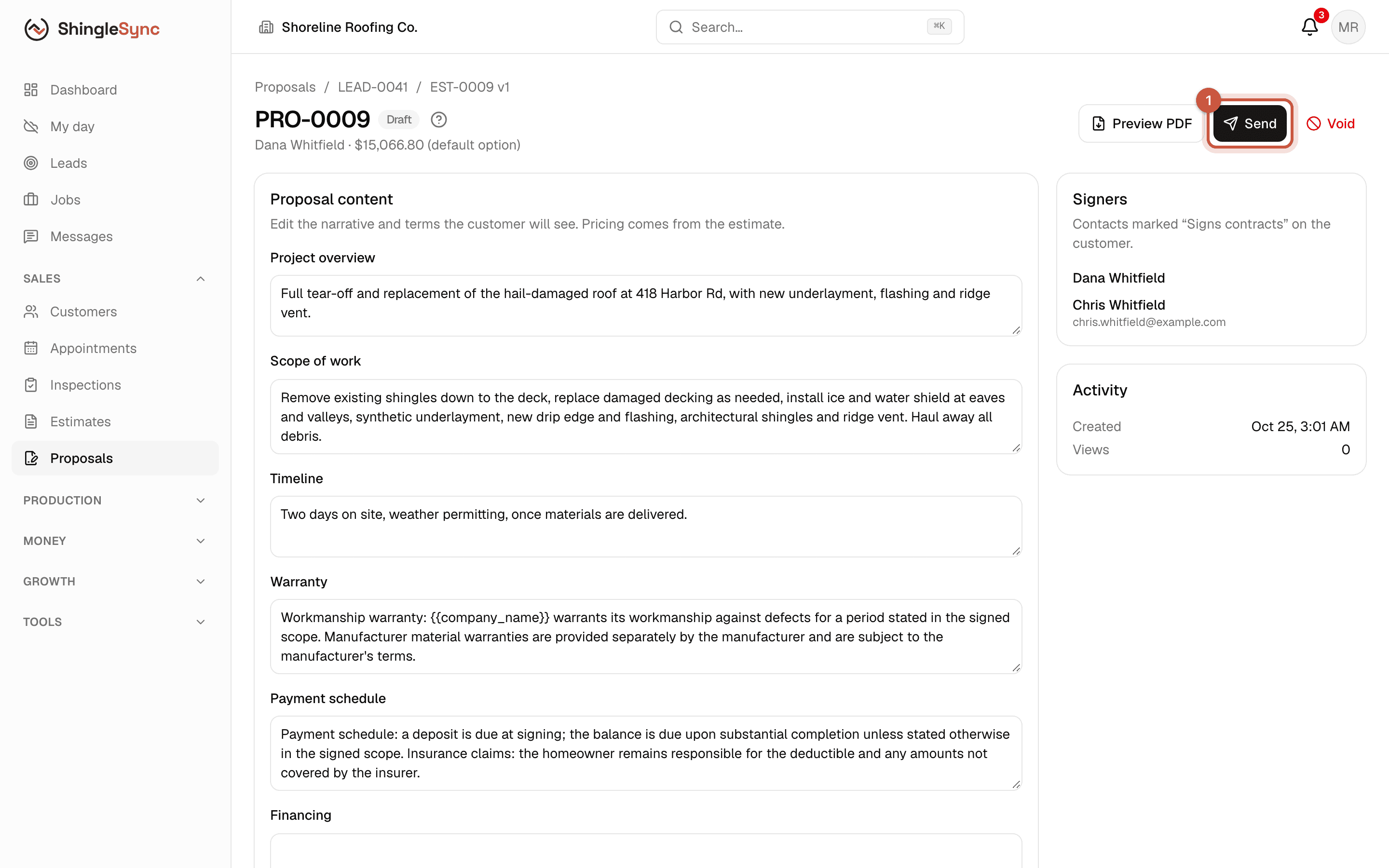
Proposal page with the Send button highlighted
1When it reads right, click Send. The content is frozen from that moment: what the homeowner sees is exactly what they sign.
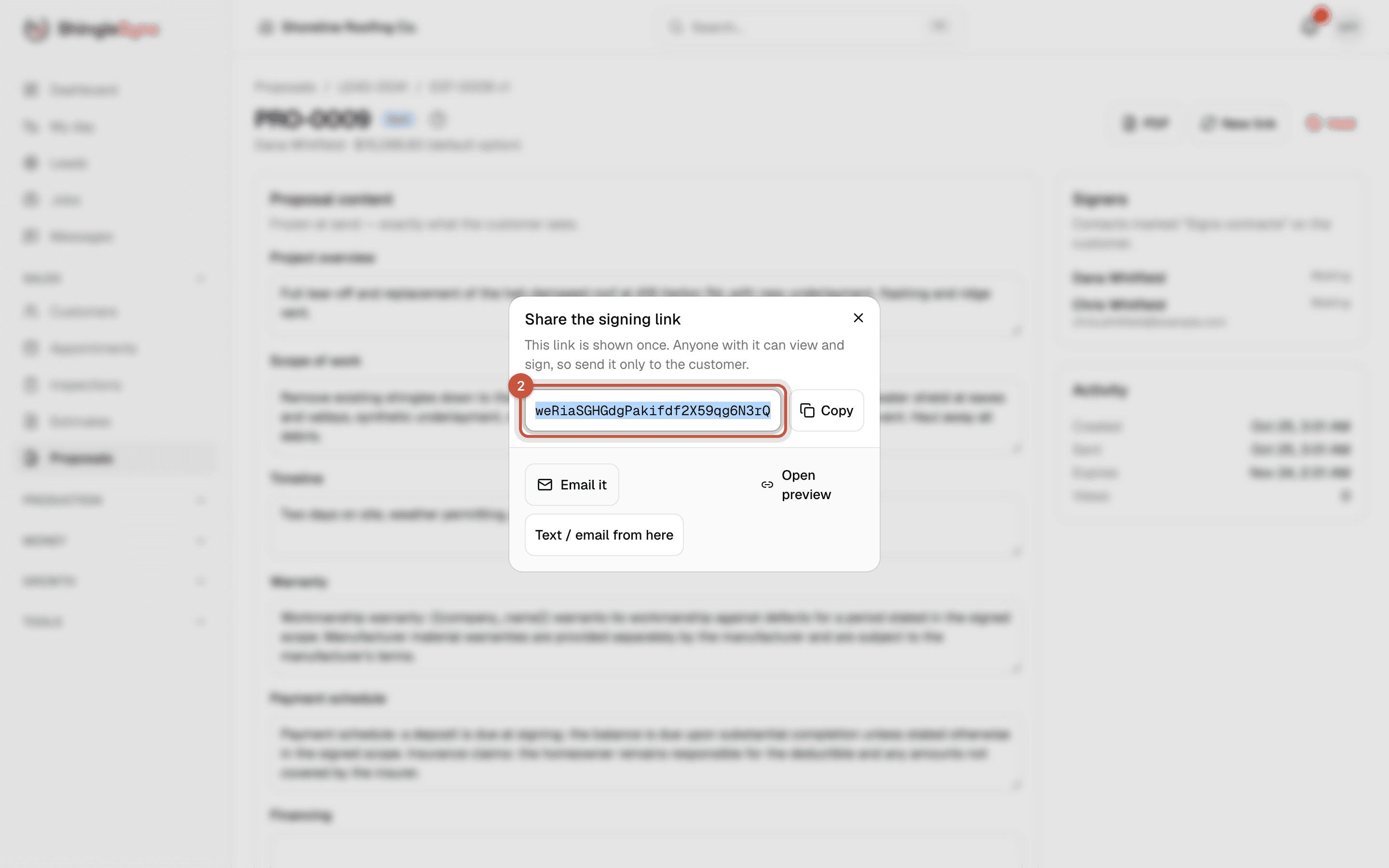
Share the signing link dialog with the link, Copy, Email it and Text / email from here
2Copy the signing link, or open your email with it ready to go. It's shown once: anyone with the link can sign, so send it only to the homeowner.
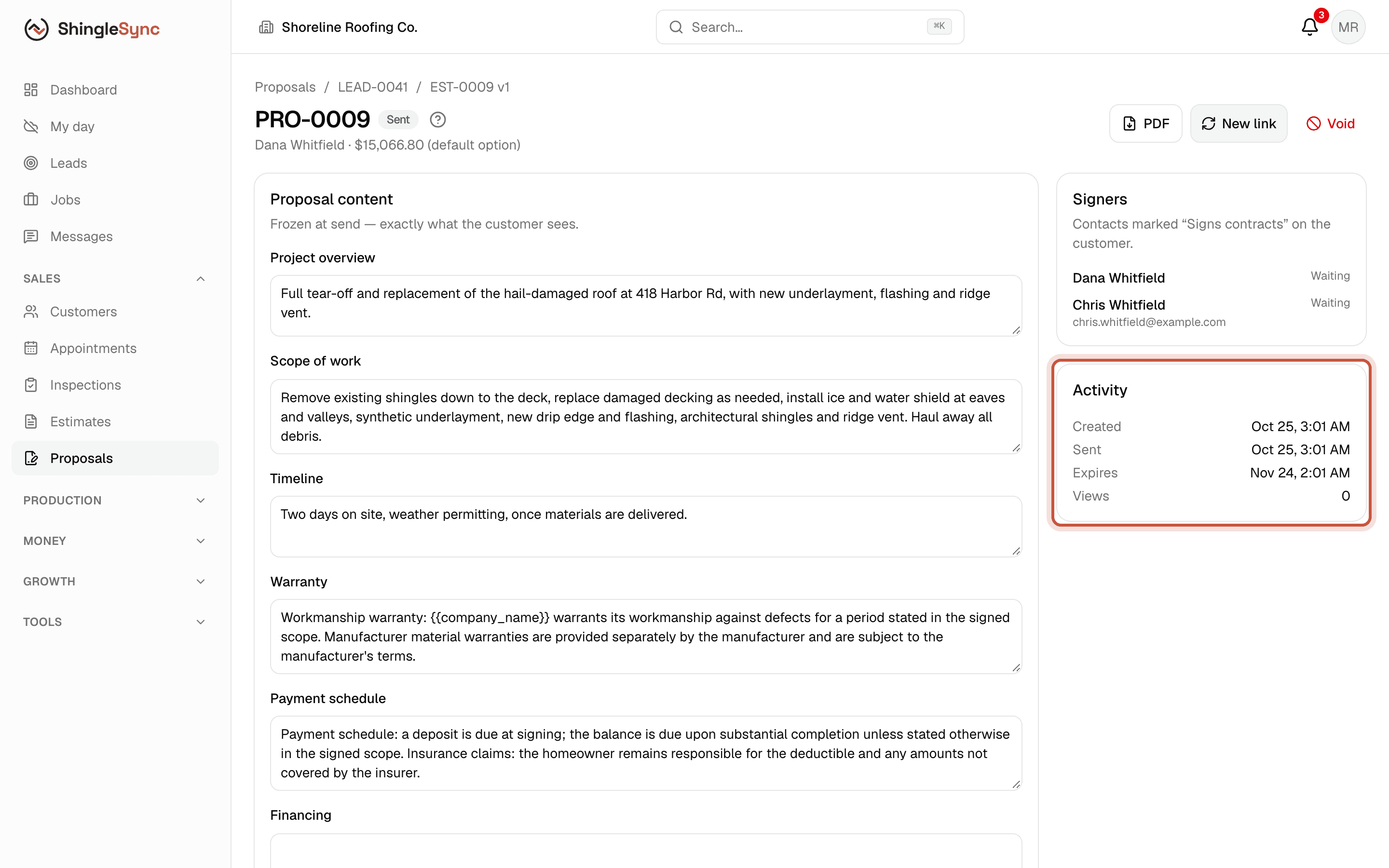
Sent proposal with the Activity card showing Created and Sent
The proposal is now Sent and the lead moves to Proposal Sent. The Activity card shows when the homeowner opens it.

When the homeowner opens the link, the proposal changes to Viewed and the lead's timeline says so. If it isn't signed after a few days, ShingleSync can remind you to follow up (Settings → Automations).

Need to change something after sending? Void the proposal, make a new estimate version and send a new proposal. A sent proposal is never edited.